Bazzite Post-Install Guide: The Ultimate Gaming Setup for PC & Handhelds
A comprehensive post-installation setup guide for Bazzite. Learn how to use ujust helper commands, install Decky Loader, set up non-Steam launchers via Flatpak, fix dual-boot clock issues, and use Distrobox.
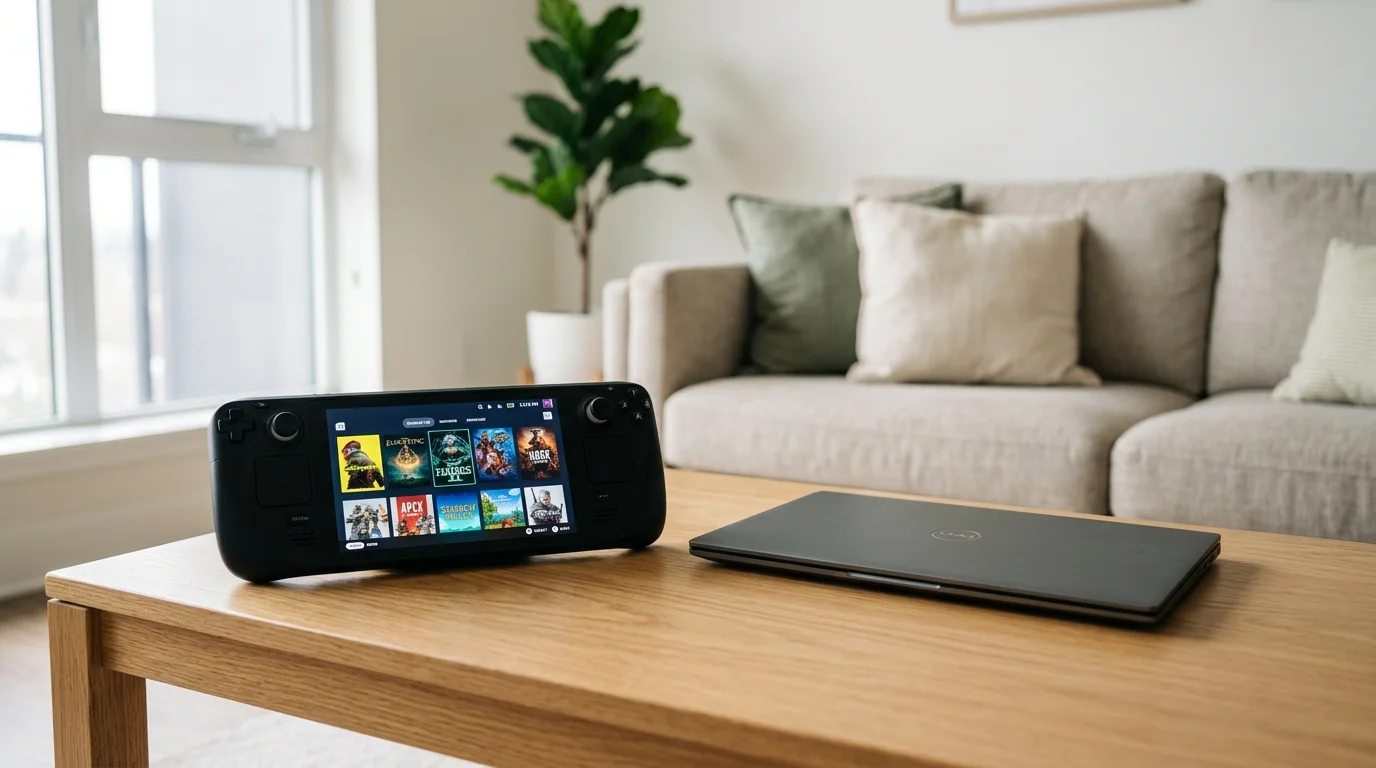
Bazzite is an open-source, immutable gaming distribution built on top of Fedora Atomic Desktops (Silverblue/Kinoite). It includes pre-installed NVIDIA/AMD drivers, Steam, Gamescope, HDR support, and custom handheld patches for devices like the Steam Deck, ROG Ally, and Legion Go.
Because Bazzite is an image-based OS, post-installation workflow differs from standard distributions: you don’t use dnf directly. Instead, you rely on Flatpak for GUI applications, ujust for system administration tasks, and Distrobox for terminal tools.
Here is how to get Bazzite completely configured after installation.
1. Run the Initial System Update
Always run the unified Bazzite update script after installation. This updates the underlying rpm-ostree image, Flatpaks, and container tools in one step:
1

ujust update
If a new OS image deployment is downloaded, reboot to boot into the updated commit:
1

systemctl reboot
To view current deployment details:
1

rpm-ostree status
2. Install Decky Loader (For Handhelds & Steam Game Mode)
If you are running Bazzite on a Steam Deck, ROG Ally, or a living-room HTPC running Steam Big Picture mode, Decky Loader gives you access to TDP controls, CSS themes, and Bluetooth plugins.
Run the official ujust helper:
1

ujust setup-decky
Follow the on-screen prompt, then launch Steam Game Mode to find the Decky plug icon in the Quick Access menu.
3. Install Non-Steam Game Launchers
Bazzite keeps the base root filesystem read-only. All third-party game stores should be installed as Flatpaks from Flathub:
1
2
3
4
5
6
7
8
9
10
11

# Epic Games & GOG launcher
flatpak install flathub com.heroicgameslauncher.hgl -y

# Lutris (for EA App, Ubisoft Connect, Battle.net)
flatpak install flathub net.lutris.Lutris -y

# Bottles (for custom Windows programs and standalone game EXEs)
flatpak install flathub com.usebottles.bottles -y

# Prism Launcher (for Minecraft)
flatpak install flathub org.prismlauncher.PrismLauncher -y
4. Fix Dual-Boot Clock Discrepancy (Windows & Linux)
If you are dual-booting Bazzite with Windows 10/11, Windows assumes your motherboard hardware clock is set to local time, while Linux assumes UTC. This causes the time to desynchronize whenever you switch operating systems.
Configure Linux to treat the hardware clock as local time:
1

timedatectl set-local-rtc 1 --adjust-system-clock
Verify the setting:
1

timedatectl | grep "RTC in local TZ"
Output should show: RTC in local TZ: yes
5. Mount a Shared NTFS or Btrfs Steam Drive
If you have an internal secondary drive containing existing games:
- Identify the drive’s UUID:
1

lsblk -f - Create a persistent mount point:
1

sudo mkdir -p /var/mnt/games
- Open
/etc/fstab:1
sudo nano /etc/fstab - Add the appropriate entry based on your filesystem:
For Btrfs:
1

UUID=YOUR_UUID_HERE /var/mnt/games btrfs defaults,noatime,compress=zstd:1 0 0
For NTFS:
1

UUID=YOUR_UUID_HERE /var/mnt/games ntfs-3g uid=1000,gid=1000,umask=022,nofail 0 0
- Test the mount without rebooting:
1

sudo mount -a
In Steam, go to Settings > Storage > Add Drive and select /var/mnt/games.
6. Use Distrobox for CLI Packages Instead of Layering
Avoid using rpm-ostree install to layer packages onto the read-only root whenever possible. Layering increases boot time and complicates OS upgrades.
Instead, use Distrobox to spin up an Arch, Fedora, or Ubuntu container that shares your home directory:
1
2
3
4
5

# Create an Arch container for AUR tools
distrobox create --name arch-box --image archlinux:latest

# Enter the container
distrobox enter arch-box
Inside the container, you have full pacman access without touching your immutable host system.
7. How to Roll Back a Bad Update
If an image update ever introduces a bug or regression, you can instantly roll back to the previous deployment:
1
2

rpm-ostree rollback
systemctl reboot
You can also select the previous deployment directly from the GRUB boot menu at startup.