Arch Linux & EndeavourOS Post-Install Guide: From Fresh Install to Daily Driver
A complete post-installation setup guide for Arch Linux and EndeavourOS. Covers pacman tuning, reflector, yay, PipeWire audio, graphics drivers, zram, firewall, and essential daily utilities.
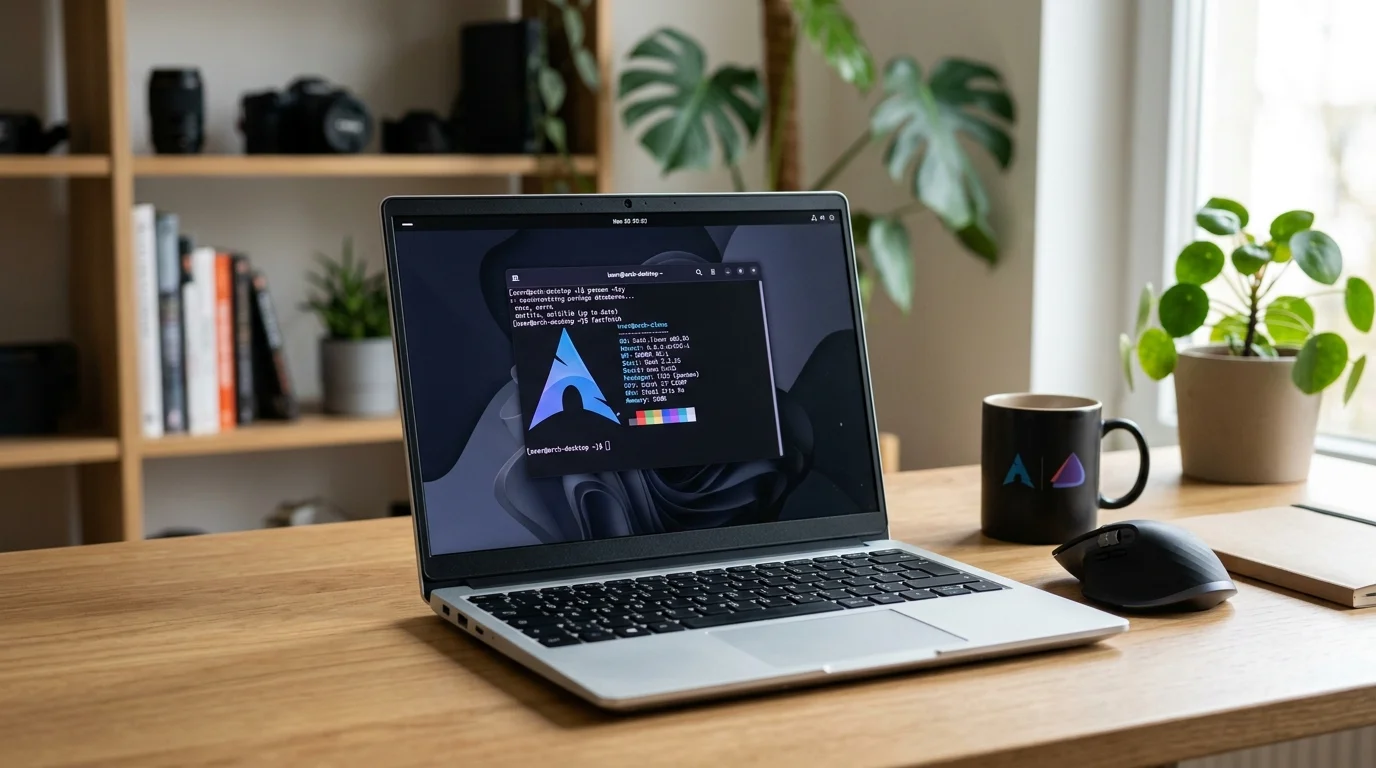
Completing a minimal Arch Linux install or landing on the EndeavourOS desktop is only half the battle. A freshly installed system lacks several essential optimizations: pacman mirror ranking, multilib repositories, audio plumbing, power management, and an AUR helper.
This post-install checklist walks through configuring Arch Linux or EndeavourOS into a reliable, high-performance daily workstation.
1. Optimize Pacman Configuration
Open /etc/pacman.conf:
1

sudo nano /etc/pacman.conf
Find the [options] section and make the following adjustments:
1
2
3
4
5
6
7

# Enable parallel downloads (set between 5 and 10)
ParallelDownloads = 5

# Enable terminal color output and pacman animation
Color
ILoveCandy
VerbosePkgLists
Scroll down to the repository section and uncomment the [multilib] repository to enable 32-bit software support (required for Steam, Wine, and certain 32-bit libraries):
1
2

[multilib]
Include = /etc/pacman.d/mirrorlist
Save and exit (Ctrl+O, Enter, Ctrl+X), then synchronize repository databases:
1

sudo pacman -Syu
2. Benchmark and Rank Mirrors with Reflector
Slow download speeds on Arch are usually caused by stale or geographically distant mirrors. Use reflector to fetch and rank the 15 fastest HTTPS mirrors:
1
2

sudo pacman -S --needed reflector rsync
sudo reflector --latest 15 --protocol https --sort rate --save /etc/pacman.d/mirrorlist
To automate mirror updates on a weekly timer, enable the systemd service:
1

sudo systemctl enable --now reflector.timer
3. Install an AUR Helper (yay)
The Arch User Repository (AUR) contains nearly every package not found in the official repos. Install yay using base development tools:
1
2
3
4
5

sudo pacman -S --needed base-devel git
git clone https://aur.archlinux.org/yay-bin.git
cd yay-bin
makepkg -si --noconfirm
cd .. && rm -rf yay-bin
Verify the installation and test an update:
1

yay -Syu
4. Verify Audio Stack (PipeWire & WirePlumber)
Modern Arch uses PipeWire as the low-latency replacement for PulseAudio and JACK. Ensure all compatibility layers and the WirePlumber session manager are installed:
1
2
3
4
5
6
7
8

sudo pacman -S --needed \
  pipewire \
  pipewire-audio \
  pipewire-alsa \
  pipewire-pulse \
  pipewire-jack \
  wireplumber \
  pavucontrol
Enable the user services:
1

systemctl --user enable --now pipewire pipewire-pulse wireplumber
Check that PulseAudio emulation is active:
1

pactl info | grep "Server Name"
Output should display: Server Name: PulseAudio (on PipeWire ...)
5. Install GPU Drivers
For NVIDIA
Install DKMS drivers so kernel updates don’t break display output:
1

sudo pacman -S --needed nvidia-dkms nvidia-utils lib32-nvidia-utils nvidia-settings
Enable NVIDIA systemd services for power management:
1

sudo systemctl enable nvidia-suspend.service nvidia-hibernate.service nvidia-resume.service
For AMD
Install the open-source Mesa drivers and Vulkan loader:
1

sudo pacman -S --needed mesa lib32-mesa xf86-video-amdgpu vulkan-radeon lib32-vulkan-radeon
For Intel
1

sudo pacman -S --needed mesa lib32-mesa intel-media-driver vulkan-intel lib32-vulkan-intel
6. Configure ZRAM Swap
ZRAM creates a compressed RAM block device used as swap, significantly improving memory efficiency under heavy loads.
Install zram-generator:
1

sudo pacman -S --needed zram-generator
Create /etc/systemd/zram-generator.conf:
1

sudo nano /etc/systemd/zram-generator.conf
Add the following configuration:
1
2
3

[zram0]
zram-size = min(ram / 2, 8192)
compression-algorithm = zstd
Start the service and verify:
1
2
3

sudo systemctl daemon-reload
sudo systemctl start systemd-zram-setup@zram0.service
zramctl
7. Enable Essential System Services
Enable SSD TRIM, Bluetooth, and network time synchronization:
1
2
3
4
5
6
7
8
9

# Periodic SSD TRIM (runs weekly)
sudo systemctl enable --now fstrim.timer

# Network time synchronization
sudo systemctl enable --now systemd-timesyncd.service

# Bluetooth (if hardware is present)
sudo pacman -S --needed bluez bluez-utils
sudo systemctl enable --now bluetooth.service
8. Configure the UFW Firewall
Install and start the Uncomplicated Firewall:
1
2
3
4
5

sudo pacman -S --needed ufw
sudo ufw default deny incoming
sudo ufw default allow outgoing
sudo ufw enable
sudo systemctl enable ufw.service
9. Set Up Automated Pacman Cache Cleaning
Pacman does not delete old package tarballs automatically from /var/cache/pacman/pkg/. Use paccache from pacman-contrib to keep only the 2 most recent versions:
1
2

sudo pacman -S --needed pacman-contrib
sudo systemctl enable --now paccache.timer
10. Install Fonts, Media Codecs, and Core Tools
Prevent missing glyphs, boxes, and broken font rendering across web pages and documents:
1
2
3
4
5
6
7
8
9
10
11
12
13
14
15
16
17
18
19
20
21
22
23
24
25
26
27
28

# Fonts
sudo pacman -S --needed \
  noto-fonts \
  noto-fonts-cjk \
  noto-fonts-emoji \
  ttf-liberation \
  ttf-jetbrains-mono-nerd

# Media codecs and playback
sudo pacman -S --needed \
  ffmpeg \
  gstreamer \
  gst-plugins-good \
  gst-plugins-bad \
  gst-plugins-ugly \
  gst-libav \
  mpv

# Essential CLI Utilities
sudo pacman -S --needed \
  htop \
  btop \
  fastfetch \
  curl \
  wget \
  unzip \
  p7zip \
  bash-completion
Reboot your system to apply all kernel modules, services, and display driver changes:
1

sudo reboot