Pop!_OS 24.04 COSMIC Post-Install Guide: Setup, Tiling, and System Tuning
Configure a fresh installation of Pop!_OS 24.04 LTS featuring System76's new Rust-based COSMIC desktop. Covers system updates, auto-tiling, hybrid GPU switching, Flatpak, codecs, and developer setup.
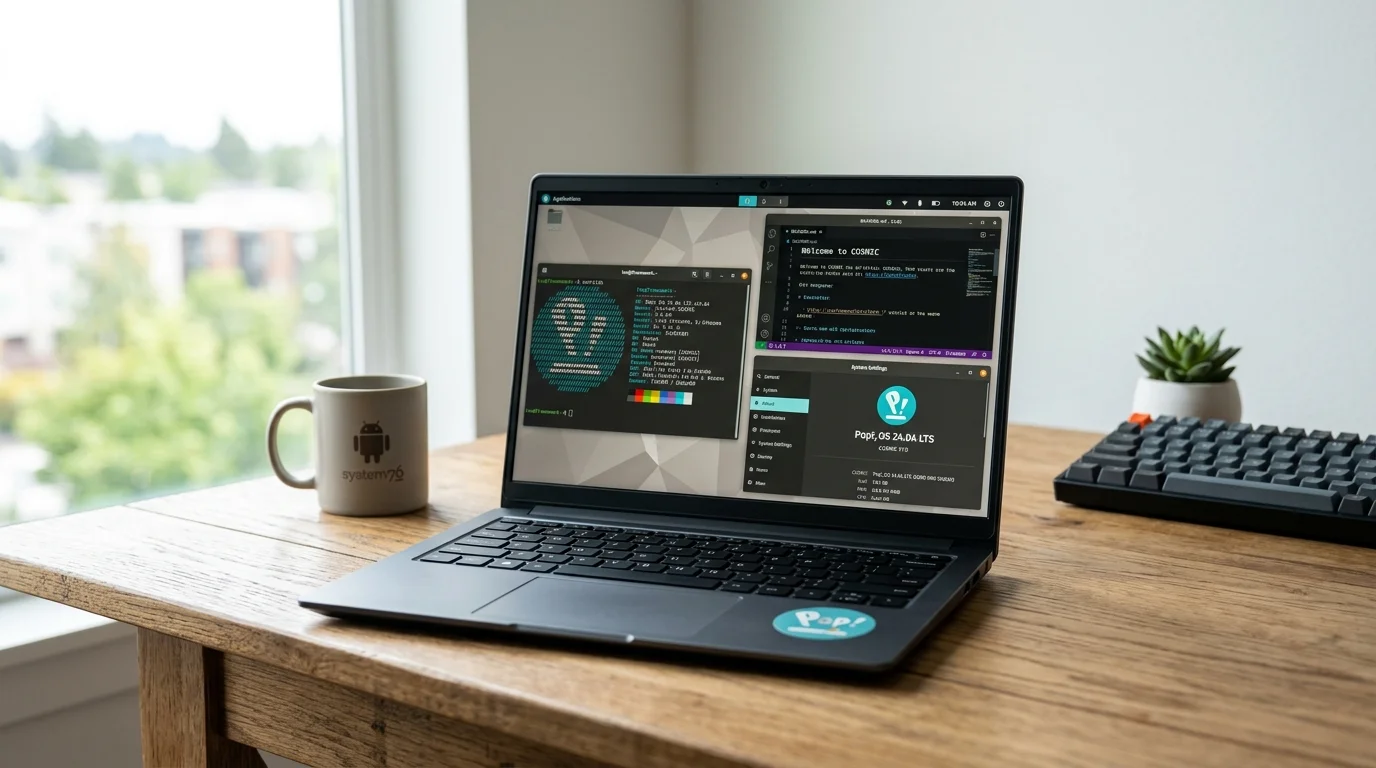
Pop!_OS 24.04 LTS is powered by the long-awaited COSMIC desktop environment, written completely from scratch in Rust. It delivers a fast, responsive Wayland-native desktop with modular applets and powerful tiling window management built directly into the core compositor.
After completing the initial setup wizard, here are the essential post-install steps to configure Pop!_OS 24.04 for everyday use, development, and gaming.
1. Update APT Packages and Flatpaks
Bring the underlying Ubuntu 24.04 LTS base and COSMIC components fully up to date:
1
2

sudo apt update && sudo apt full-upgrade -y
flatpak update -y
If kernel updates or COSMIC compositor libraries were patched, reboot to ensure you are running on the latest build:
1

sudo reboot
2. Configure COSMIC Auto-Tiling and Keybindings
The defining feature of COSMIC is its integrated auto-tiling engine. You can toggle auto-tiling globally or on a per-workspace basis.
-
Toggle Tiling On/Off: Click the Tiling icon in the top panel or press
Super + Y. -
Navigate Windows:
Super + H/J/K/L(or Arrow keys). -
Swap Windows:
Super + Shift + H/J/K/L(or Arrow keys). -
Toggle Floating Window:
Super + G. -
Application Launcher:
SuperorSuper + /.
To adjust window gap spacing or set exceptions for floating windows (e.g., calculator or password managers):
- Open Settings > Desktop > Window Management.
- Adjust Window Gaps (default is 4px).
- Under Window Exceptions, add applications you want to always open floating.
3. Manage Hybrid GPU Graphics (For Laptops)
Pop!_OS includes native graphics switching for dual-GPU laptops (Intel/NVIDIA or AMD/NVIDIA) using system76-power.
Check current GPU status:
1

system76-power graphics
Switch between power profiles as needed:
1
2
3
4
5
6
7
8
9
10
11

# Maximum battery life (disables NVIDIA dGPU)
sudo system76-power graphics integrated

# Best balance for everyday work
sudo system76-power graphics hybrid

# Dedicated GPU only (best for external monitors and gaming)
sudo system76-power graphics nvidia

# Compute mode (keeps dGPU powered for CUDA/ML without driving display)
sudo system76-power graphics compute
Note: Switching GPU modes requires a reboot or session logout to take effect.
4. Install Multimedia Codecs and Microsoft Fonts
Install restricted video and audio decoders (H.264, AAC, proprietary media filters):
1

sudo apt install -y ubuntu-restricted-extras
To enable hardware video acceleration in Firefox under Wayland:
- Open Firefox and navigate to
about:config. - Search for
media.ffmpeg.vaapi.enabledand set it totrue. - Search for
media.rdd-ffmpeg.enabledand verify it istrue.
5. Manage Flatpak Permissions with Flatseal
Pop!_OS defaults to Flatpaks for third-party graphical applications inside the COSMIC App Store. Install Flatseal to review and adjust permissions (file system paths, network access, Wayland/X11 sockets):
1

flatpak install flathub com.github.tchx84.Flatseal -y
6. Configure Power Profiles
Pop!_OS manages CPU governor states through system76-power. You can toggle performance modes directly from the power applet in the panel or via terminal:
1
2
3
4
5
6
7
8

# For maximum performance on AC power
system76-power profile performance

# For balanced everyday use
system76-power profile balanced

# For battery conservation
system76-power profile battery
7. Enable UFW Firewall
Turn on the firewall to prevent unsolicited incoming network requests:
1
2
3
4

sudo ufw default deny incoming
sudo ufw default allow outgoing
sudo ufw enable
sudo ufw status
8. Set Up Recovery Partition and Kernel Maintenance
Pop!_OS uses systemd-boot instead of GRUB and maintains a dedicated recovery partition on your disk.
To refresh the recovery partition with the latest Pop!_OS release image:
1

sudo pop-upgrade recovery upgrade from-release
To clean up old, unused kernels and cached packages:
1
2

sudo apt autoremove --purge -y
sudo apt clean
9. Install Essential Development Tools
Pop!_OS is widely used for engineering and software development. Install the core build toolchain:
1
2
3
4
5
6
7
8
9
10
11

sudo apt install -y \
  build-essential \
  curl \
  wget \
  git \
  htop \
  btop \
  fastfetch \
  micro \
  ripgrep \
  fd-find
If you plan to develop COSMIC applets or Rust applications:
1
2

curl --proto '=https' --tlsv1.2 -sSf https://sh.rustup.rs | sh -s -- -y
source "$HOME/.cargo/env"